Quick answer
If you want to record video with Puppeteer today, start with the native page.screencast() API.
It is now good enough for many common cases and supports useful options such as format, crop, fps, quality, scale, and speed through ScreencastOptions.
Use puppeteer-screen-recorder when you need a package wrapper around recording, want a stream-based workflow, or prefer its API over the native Puppeteer recorder.
Record video with Puppeteer using page.screencast()
This is the simplest way to record a video in Puppeteer:
import puppeteer from "puppeteer";
const browser = await puppeteer.launch();
try { const page = await browser.newPage();
await page.setViewport({ width: 1280, height: 720, deviceScaleFactor: 1, });
await page.goto("https://screenshotone.com", { waitUntil: "networkidle2", });
const recorder = await page.screencast({ path: "recording.mp4", format: "mp4", fps: 30, });
await page.evaluate(() => { window.scrollBy({ top: 900, left: 0, behavior: "smooth" }); });
await new Promise((resolve) => setTimeout(resolve, 1500));
await recorder.stop();} finally { await browser.close();}This method requires FFmpeg to be installed locally.
For most “Puppeteer record video” use cases, this should be your default starting point.
Puppeteer screencast options
The native API is no longer as limited as many older tutorials suggest.
According to the official Puppeteer docs, page.screencast() supports:
| Option | What it is useful for |
|---|---|
format | Save as mp4, webm, or gif |
fps | Control playback smoothness |
quality | Tune compression and output quality |
scale | Downscale output for smaller files |
speed | Speed up or slow down the recording |
crop | Record only part of the page |
That means native Puppeteer is already a strong option for:
- short product demos;
- automated test recordings;
- scroll-based captures;
- debugging browser automation flows;
- generating MP4, WebM, or GIF output from a script.
Record part of the page with Puppeteer crop
If you only need to record a specific region, use crop:
import puppeteer from "puppeteer";
const browser = await puppeteer.launch();
try { const page = await browser.newPage();
await page.setViewport({ width: 1440, height: 900, deviceScaleFactor: 1, });
await page.goto("https://tailwindcss.com", { waitUntil: "networkidle2", });
const recorder = await page.screencast({ path: "hero-section.webm", format: "webm", crop: { x: 0, y: 0, width: 1440, height: 520, }, });
await new Promise((resolve) => setTimeout(resolve, 2000));
await recorder.stop();} finally { await browser.close();}This is useful when you want a cleaner recording for a landing page hero, dashboard widget, or a single component in a test report.
Puppeteer screen recorder with puppeteer-screen-recorder
If you specifically want the puppeteer-screen-recorder package, install it like this:
npm i puppeteer-screen-recorderAnd then use it like this:
"use strict";
const puppeteer = require("puppeteer");const { PuppeteerScreenRecorder } = require("puppeteer-screen-recorder");
(async () => { const browser = await puppeteer.launch();
try { const page = await browser.newPage();
await page.setViewport({ width: 1920, height: 1080, deviceScaleFactor: 1, });
await page.goto("https://tailwindcss.com/", { waitUntil: "networkidle2", });
const recorder = new PuppeteerScreenRecorder(page);
await recorder.start("video.mp4"); await animate(page); await recorder.stop(); } catch (error) { console.error(error); } finally { await browser.close(); }})();
async function animate(page) { await wait(500); await page.evaluate(() => { window.scrollBy({ top: 500, left: 0, behavior: "smooth" }); }); await wait(500); await page.evaluate(() => { window.scrollBy({ top: 1000, left: 0, behavior: "smooth" }); }); await wait(1000);}
function wait(ms) { return new Promise((resolve) => setTimeout(resolve, ms));}You can still convert the resulting MP4 to GIF with FFmpeg:
const util = require("util");const exec = util.promisify(require("child_process").exec);
await exec("ffmpeg -i video.mp4 -qscale 0 animated.gif");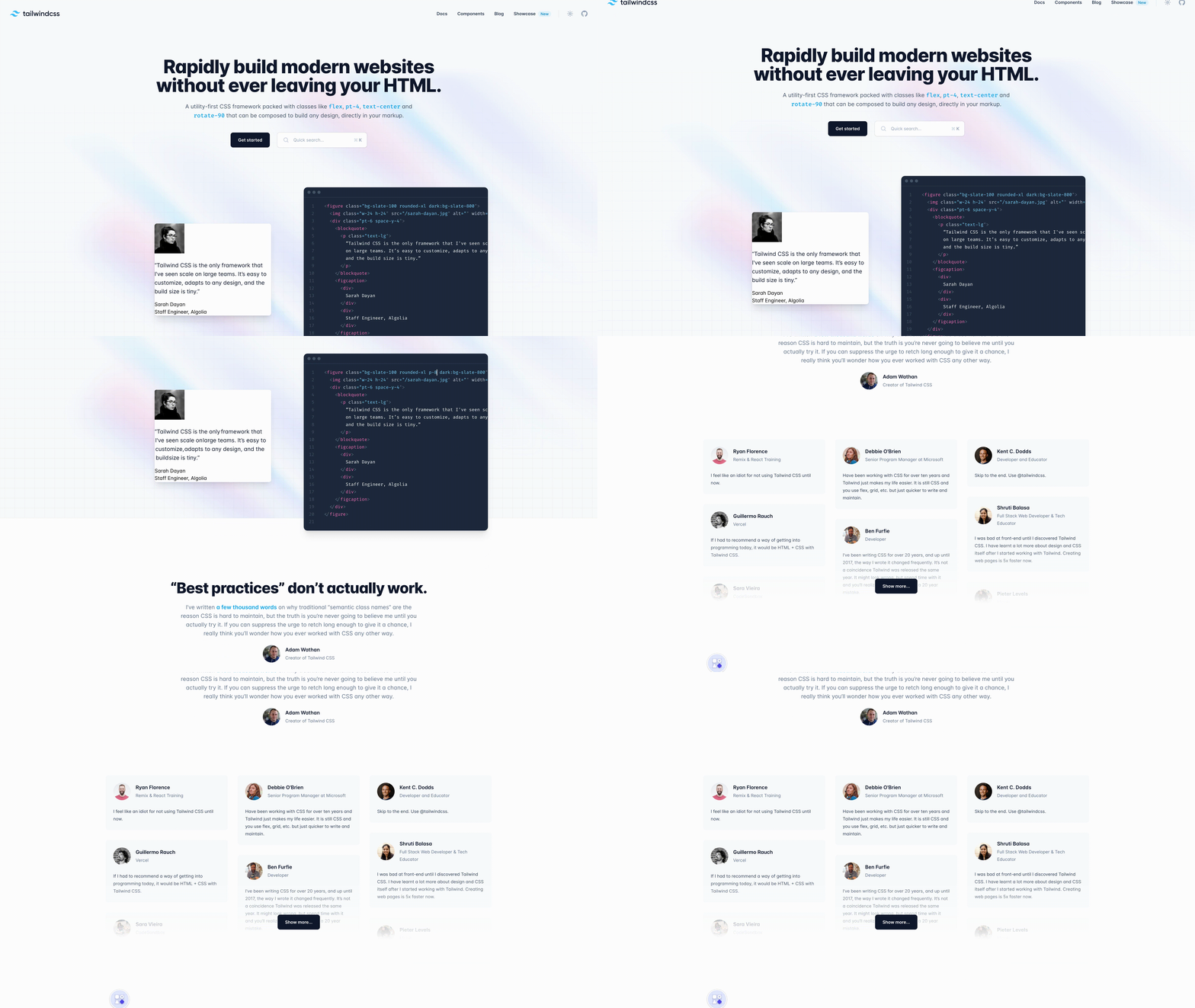
page.screencast() vs puppeteer-screen-recorder
Here is the practical difference:
| Option | Best for | Strengths | Tradeoffs |
|---|---|---|---|
Native page.screencast() | Most Puppeteer video recording tasks | Official API, supports mp4/webm/gif, crop, fps, quality, scale, speed | Simpler API, but less package abstraction |
puppeteer-screen-recorder | Teams that prefer a package wrapper or stream-based handling | Familiar library API, can fit custom recording pipelines better | Extra dependency and not the canonical Puppeteer API |
If your goal is simply “record video with Puppeteer”, use the native API first.
If your team is already built around puppeteer-screen-recorder, or you want the library’s approach to stream handling and page lifecycle behavior, keep using the package.
How to stream Puppeteer recording instead of saving to disk
One reason to use puppeteer-screen-recorder is stream-oriented workflows.
That can matter if you want to:
- send video directly to object storage;
- process chunks without keeping large local files;
- integrate recording into a queue or worker pipeline.
The native page.screencast() path is ideal when writing a file directly is acceptable. If direct streaming is central to your architecture, evaluate the library approach first.
Can Puppeteer record audio?
At the time of writing, the official ScreencastOptions documentation lists video-oriented options such as format, crop, fps, quality, scale, and speed, but does not list audio settings.
So the safe assumption is: use Puppeteer for visual recording, and use a separate browser-media or system-level capture solution if tab audio is a hard requirement.
Use cases
Marketing with animated screenshots
You can generate animated page recordings for:
- personalized outbound emails;
- product walkthroughs;
- changelog videos;
- blog post demos;
- landing page previews.
Debug browser automation
In production scraping or automation flows, a recording can show exactly what happened before a failure.
That is especially useful when the issue is timing-related, environment-specific, or difficult to reproduce locally.
Test reports
Recording end-to-end flows can make failed test reports much easier to review.
Instead of reading logs alone, developers can watch the interaction and identify where the state diverged.
Interactive mockups and programmatic demos
If you can script the interaction in JavaScript, you can turn it into a repeatable recording.
That is useful for design handoff, launch announcements, and documentation videos.
Use ScreenshotOne API if you need hosted rendering
If you do not want to maintain browser automation, FFmpeg, storage, and media processing yourself, you can use ScreenshotOne API.
It supports animated screenshots and lets you generate recordings in one request:
https://api.screenshotone.com/animate?url=https://tailwindcss.com&access_key=<your access key>That can be a better fit when your actual goal is marketing automation or media generation at scale, not maintaining a Puppeteer recording stack.
Frequently Asked Questions
What is the best way to record video with Puppeteer?
Start with the native page.screencast() API. It is the official Puppeteer solution and already supports useful recording controls such as output format, cropping, fps, quality, scale, and speed.
Should I use page.screencast() or puppeteer-screen-recorder?
Use page.screencast() first for most projects. Use puppeteer-screen-recorder if your workflow benefits from that package’s abstraction or stream-based handling.
Can Puppeteer save recordings as MP4?
Yes. Current Puppeteer documentation lists mp4 as one of the supported video formats for screencast output.
Can Puppeteer create GIF files?
Yes. Current Puppeteer documentation lists gif as a supported screencast format, and FFmpeg-based conversion is still another option if you prefer to convert after recording.
Can Puppeteer record only part of the page?
Yes. Use the crop option in page.screencast() to record a specific region.
Summary
Native Puppeteer is now the right default for recording video from a page.
Use page.screencast() when you want the official API and straightforward MP4, WebM, or GIF output. Use puppeteer-screen-recorder when you specifically want that package’s workflow.