Python MSS stands for Multiple Screen Shot, and it lives up to the name. It handles multi-monitor setups natively, runs on Windows, macOS, and Linux, and delivers solid performance.
If you want to save time, I shared all the code examples in the open GitHub repository.
Installation and Basic Usage
Install the library using pip:
pip install mssAnd then:
import mss
with mss.mss() as sct: # Capture the first monitor screenshot = sct.grab(sct.monitors[1])
# Save to file mss.tools.to_png(screenshot.rgb, screenshot.size, output='screenshot.png')Understanding Monitors
mss uses an index system for monitors:
import mss
with mss.mss() as sct: # monitors[0] = all monitors combined # monitors[1] = first monitor # monitors[2] = second monitor (if exists)
for i, monitor in enumerate(sct.monitors): print(f"Monitor {i}: {monitor}")Output:
Monitor 0: {'left': 0, 'top': 0, 'width': 3840, 'height': 1080}Monitor 1: {'left': 0, 'top': 0, 'width': 1920, 'height': 1080}Monitor 2: {'left': 1920, 'top': 0, 'width': 1920, 'height': 1080}Capturing Specific Monitors
import mss
with mss.mss() as sct: # First monitor first_monitor = sct.grab(sct.monitors[1])
# Second monitor second_monitor = sct.grab(sct.monitors[2])
# All monitors combined all_monitors = sct.grab(sct.monitors[0])Capturing Specific Regions
Define a region with a dictionary:
import mss
with mss.mss() as sct: region = { 'left': 100, # X coordinate 'top': 100, # Y coordinate 'width': 500, # Width in pixels 'height': 500 # Height in pixels }
screenshot = sct.grab(region) mss.tools.to_png(screenshot.rgb, screenshot.size, output='region.png')Saving Screenshots
To PNG File
import mss
with mss.mss() as sct: screenshot = sct.grab(sct.monitors[1]) mss.tools.to_png(screenshot.rgb, screenshot.size, output='screenshot.png')To PIL Image
import mssfrom PIL import Image
with mss.mss() as sct: screenshot = sct.grab(sct.monitors[1])
# Convert BGRA to RGB img = Image.frombytes('RGB', screenshot.size, screenshot.bgra, 'raw', 'BGRX') img.save('screenshot.png')To NumPy Array
import mssimport numpy as np
with mss.mss() as sct: screenshot = sct.grab(sct.monitors[1]) img_array = np.array(screenshot) # BGRA format
# Convert to RGB if needed rgb_array = img_array[:, :, :3][:, :, ::-1] # Remove alpha, BGR to RGBUnderstanding Color Formats
mss returns BGRA (Blue, Green, Red, Alpha) format:
import mss
with mss.mss() as sct: screenshot = sct.grab(sct.monitors[1])
# Raw bytes (BGRA) bgra_bytes = screenshot.bgra
# RGB bytes (for saving) rgb_bytes = screenshot.rgb
# Size tuple width, height = screenshot.sizeBGRA to RGB Conversion
import mssimport numpy as np
with mss.mss() as sct: screenshot = sct.grab(sct.monitors[1])
# Method 1: Using numpy bgra = np.array(screenshot) rgb = bgra[:, :, [2, 1, 0]] # Swap B and R channels
# Method 2: Using PIL from PIL import Image img = Image.frombytes('RGB', screenshot.size, screenshot.bgra, 'raw', 'BGRX')Performance Optimization
Reuse the mss Instance
import mss
# Bad: Creating new instance each timefor i in range(100): with mss.mss() as sct: screenshot = sct.grab(sct.monitors[1])
# Good: Reuse instancewith mss.mss() as sct: for i in range(100): screenshot = sct.grab(sct.monitors[1])Capture Only What You Need
import mss
with mss.mss() as sct: # Capturing a smaller region is faster small_region = {'left': 0, 'top': 0, 'width': 100, 'height': 100} screenshot = sct.grab(small_region)Benchmark
import mssimport time
with mss.mss() as sct: monitor = sct.monitors[1]
start = time.time() frames = 0
while time.time() - start < 5: sct.grab(monitor) frames += 1
fps = frames / 5 print(f"FPS: {fps:.1f}")Typical results: 30-60 FPS depending on resolution and system.
Continuous Capture
import mssimport time
def record_screen(duration_seconds, output_dir='frames'): import os os.makedirs(output_dir, exist_ok=True)
frames = []
with mss.mss() as sct: monitor = sct.monitors[1] start = time.time()
while time.time() - start < duration_seconds: screenshot = sct.grab(monitor) frames.append(screenshot)
# Save frames for i, frame in enumerate(frames): mss.tools.to_png(frame.rgb, frame.size, output=f'{output_dir}/frame_{i:05d}.png')
print(f"Captured {len(frames)} frames") return frames
record_screen(2) # Record 2 secondsCommon Errors and Solutions
ScreenShotError: xgetimage() failed
This error occurs on Linux when the X display isn’t accessible.
Solution 1: Set the DISPLAY variable
export DISPLAY=:0python your_script.pySolution 2: Use Xvfb for headless servers
apt-get install xvfbxvfb-run python your_script.pySolution 3: Check display access in code
import osimport mss
# Ensure DISPLAY is setif 'DISPLAY' not in os.environ: os.environ['DISPLAY'] = ':0'
with mss.mss() as sct: screenshot = sct.grab(sct.monitors[1])Import Error on Linux
# Install required system dependenciesapt-get install python3-xlibMSS vs DXcam
| Feature | MSS | DXcam |
|---|---|---|
| Platform | Windows, macOS, Linux | Windows only |
| FPS | 30-60 | 240+ |
| Multi-monitor | Excellent | Good |
| Dependencies | Pure Python | DirectX |
| Best for | Cross-platform | Gaming |
Use MSS when: You need cross-platform support or don’t need extreme performance.
Use DXcam when: You are on Windows and need maximum FPS.
However, consider that DXcam is not actively maintained at the moment of writing the guide.
Complete Example
import mssimport timefrom PIL import Imagefrom pathlib import Path
class ScreenCapture: def __init__(self, output_dir='captures'): self.output_dir = Path(output_dir) self.output_dir.mkdir(exist_ok=True)
def capture_monitor(self, monitor_index=1, filename='screenshot.png'): """Capture a specific monitor.""" with mss.mss() as sct: if monitor_index >= len(sct.monitors): raise ValueError(f"Monitor {monitor_index} not found")
screenshot = sct.grab(sct.monitors[monitor_index]) output_path = self.output_dir / filename mss.tools.to_png(screenshot.rgb, screenshot.size, output=str(output_path)) return output_path
def capture_region(self, left, top, width, height, filename='region.png'): """Capture a specific region.""" region = {'left': left, 'top': top, 'width': width, 'height': height}
with mss.mss() as sct: screenshot = sct.grab(region) output_path = self.output_dir / filename mss.tools.to_png(screenshot.rgb, screenshot.size, output=str(output_path)) return output_path
def list_monitors(self): """List available monitors.""" with mss.mss() as sct: return sct.monitors
# Usagecapture = ScreenCapture()print("Monitors:", capture.list_monitors())capture.capture_monitor(1, 'monitor1.png')capture.capture_region(0, 0, 500, 500, 'region.png')Run the script with:
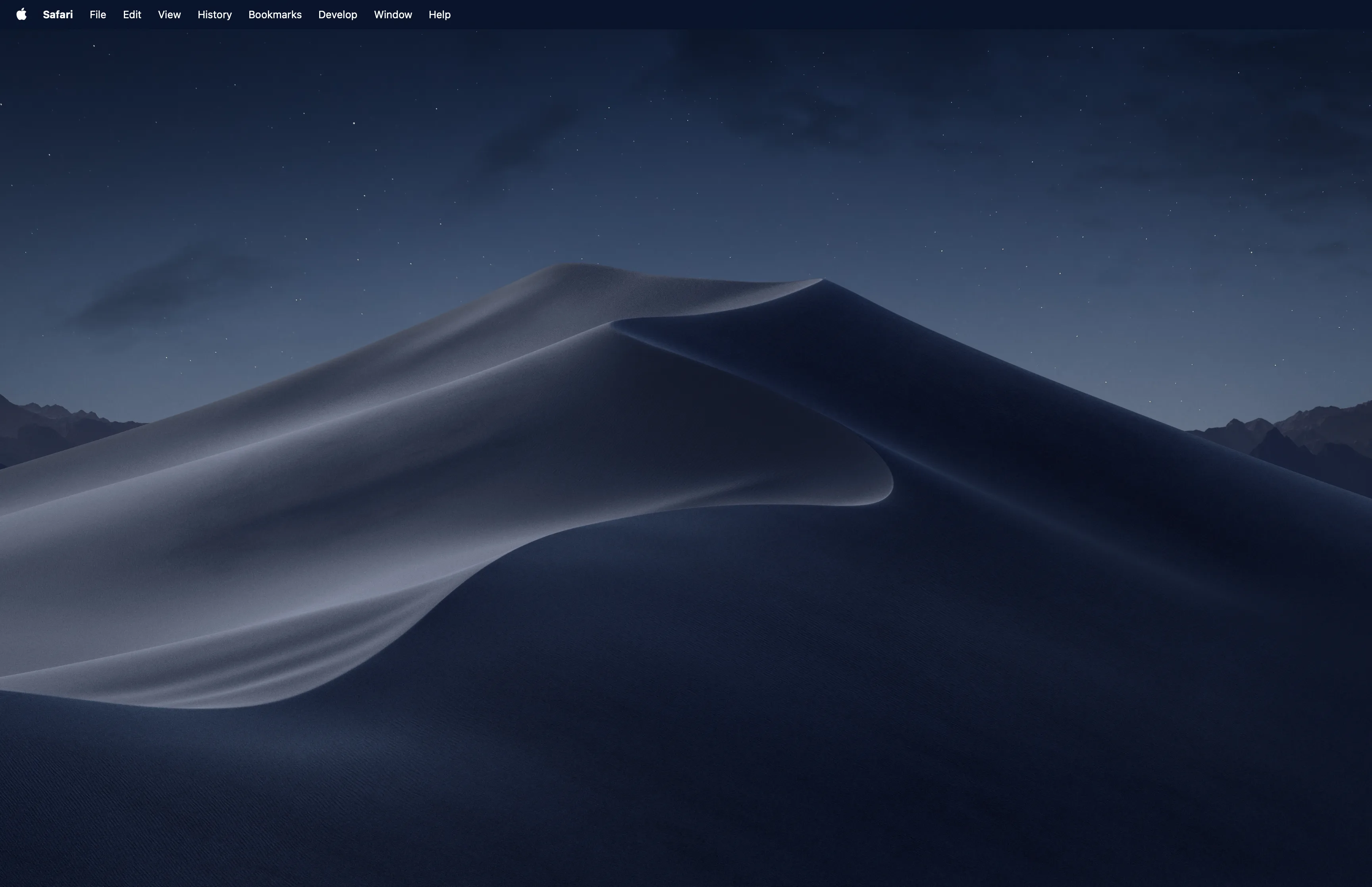
python record_screen.pyResults on my machine:
For the first monitor:
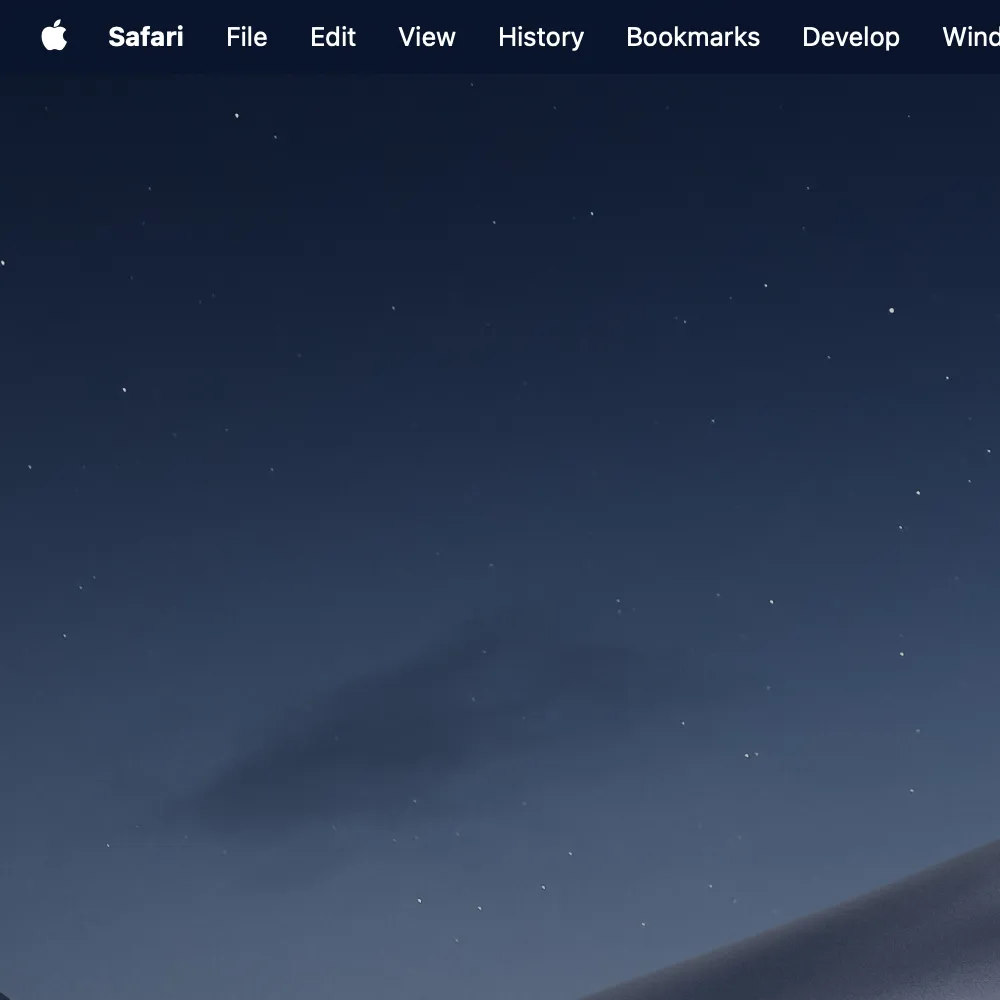
For the region:
Summary
Python MSS is the best general-purpose screen capture library for Python:
- Cross-platform (Windows, macOS, Linux)
- Fast enough for most use cases (30-60 FPS)
- Native multi-monitor support
- Simple API with no complex dependencies
For website screenshots check out our guide on website screenshots with Python or use Playwright.
Frequently Asked Questions
If you read the article, but still have questions. Please, check the most frequently asked. And if you still have questions, feel free reach out at support@screenshotone.com.
Is MSS faster than DXcam for screen capture?
No, DXcam is faster (240+ FPS vs 30-60 FPS), but it only works on Windows. mss is the best choice for cross-platform code or when you don't need extreme performance.
How to fix MSS ScreenShotError xgetimage() failed?
This error occurs on Linux when the display isn't accessible. Make sure DISPLAY environment variable is set, or run with a display server. For headless servers, use Xvfb.
What format does MSS grab() return?
MSS returns a ScreenShot object with BGRA pixel data. Use screenshot.rgb for RGB data, or convert with PIL/numpy for other formats.