While building ScreenshotOne (one of the best screenshot APIs), I spent a lot of time playing with different libraries and approaches to take website screenshots.
In Python, I tried Selenium, pyppeteer, and finally landed on Playwright. After working with all three, I can confidently say Playwright is the best choice for Python developers today. Not only it is actively maintained and developed, but it also has a lot of features that are very useful for taking website screenshots.
In this guide, I’ll walk you through everything you need to know about taking screenshots with Playwright in Python—from basic usage to advanced techniques like device emulation and dark mode captures.
I wrote a lot and initially included details about full page screenshots, too. But later I realized that this is such a huge topic that it deserves a separate guide, check it out if you want full page screenshots with Playwright in Python.
Quick Start
First, install Playwright:
pip install playwrightplaywright install chromiumHere’s the simplest way to take a screenshot:
from playwright.sync_api import sync_playwright
with sync_playwright() as p: browser = p.chromium.launch() page = browser.new_page() page.goto('https://github.com') page.screenshot(path='screenshot.png') browser.close()That’s it:
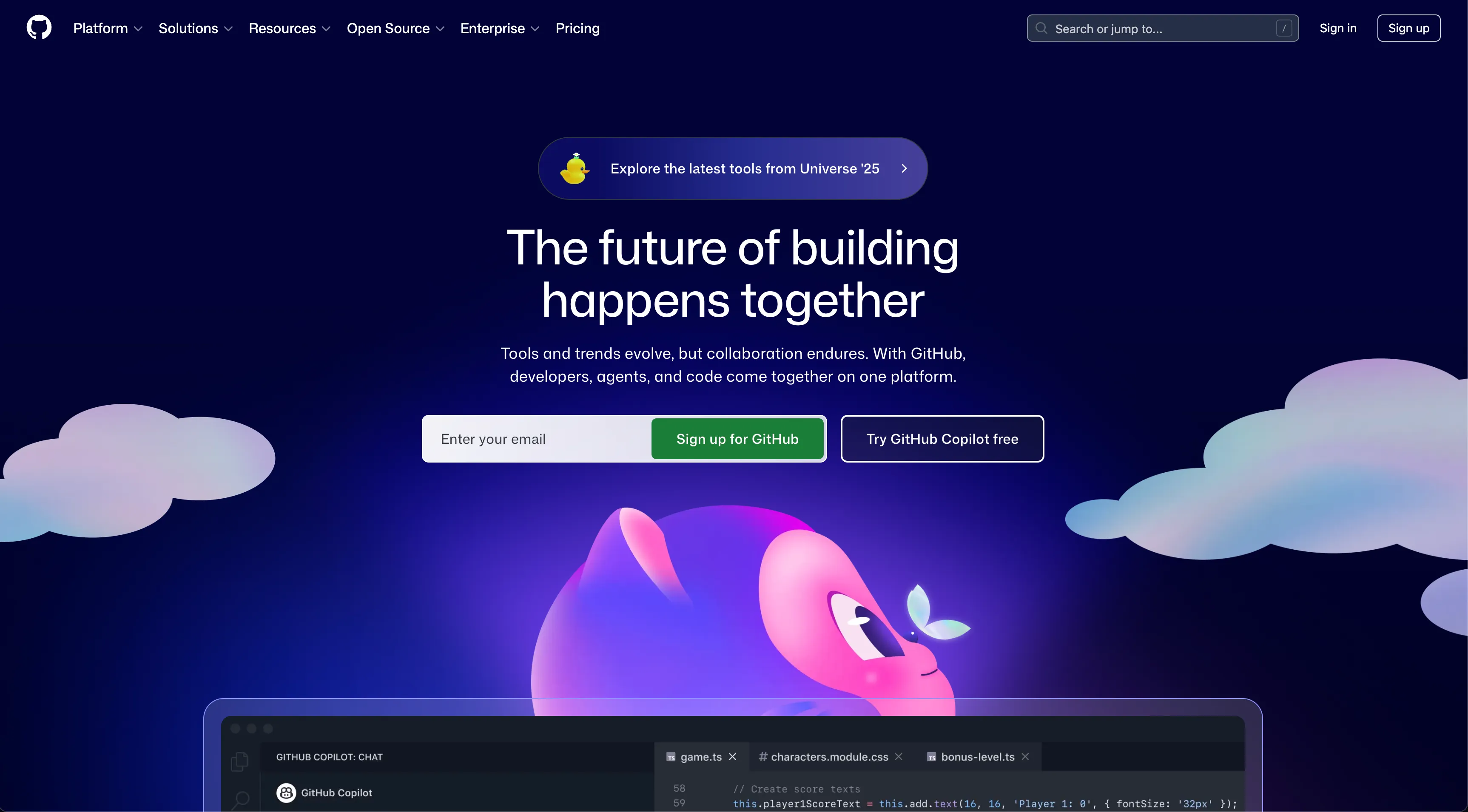
But there’s so much more you can do.
Understanding page.screenshot() Parameters
The page.screenshot() method accepts several parameters that give you fine-grained control:
page.screenshot( path='screenshot.png', # File path to save type='png', # 'png' or 'jpeg' quality=80, # JPEG quality (0-100), ignored for PNG full_page=True, # Capture full scrollable page clip={ # Capture specific region 'x': 0, 'y': 0, 'width': 800, 'height': 600 }, omit_background=True, # Transparent background for PNG animations='disabled', # Disable CSS animations scale='css' # 'css' or 'device' pixel scale)Let me break down when to use each:
full_page=True: Essential for capturing entire landing pages or long articlesomit_background=True: Perfect for screenshots with transparent backgroundsclip: When you only need a specific portion of the pageanimations='disabled': Prevents half-rendered animations in your screenshots
Full page screenshots are unfortunately extremely hard to render right, so you might want to check out the guide about the full page screenshots for more details.
Sync vs Async: When to Use Each
Playwright offers both synchronous and asynchronous APIs. Here’s when to use each:
Synchronous API
Use for simple, one-off screenshots:
from playwright.sync_api import sync_playwright
def take_screenshot(url, output_path): with sync_playwright() as p: browser = p.chromium.launch(headless=True) page = browser.new_page() page.goto(url) page.screenshot(path=output_path, full_page=True) browser.close()
take_screenshot('https://example.com', 'example.png')Asynchronous API
Use for batch processing or when you need concurrency:
import asynciofrom playwright.async_api import async_playwright
async def take_screenshot(url, output_path): async with async_playwright() as p: browser = await p.chromium.launch(headless=True) page = await browser.new_page() await page.goto(url) await page.screenshot(path=output_path, full_page=True) await browser.close()
async def main(): urls = [ ('https://example.com', 'example.png'), ('https://github.com', 'github.png'), ] await asyncio.gather(*[ take_screenshot(url, path) for url, path in urls ])
asyncio.run(main())The async version can process multiple URLs concurrently, significantly speeding up batch operations.
Waiting for Dynamic Content
Modern websites load content dynamically. Taking a screenshot too early means missing content. Here’s how to handle it:
Wait for Network Idle
page.goto('https://example.com')page.wait_for_load_state('networkidle')page.screenshot(path='screenshot.png')Wait for Specific Elements
page.goto('https://example.com')page.wait_for_selector('.main-content', state='visible')page.screenshot(path='screenshot.png')Wait with Timeout
page.goto('https://example.com')page.wait_for_selector('.lazy-loaded-image', timeout=10000)page.screenshot(path='screenshot.png')I typically combine these approaches for reliability:
page.goto('https://example.com', wait_until='domcontentloaded')page.wait_for_load_state('networkidle')page.wait_for_timeout(500) # Extra buffer for animationspage.screenshot(path='screenshot.png')Element-Specific Screenshots
Sometimes you only need a screenshot of a specific element:
from playwright.sync_api import sync_playwright
with sync_playwright() as p: browser = p.chromium.launch() page = browser.new_page() page.goto('https://example.com')
# Screenshot a specific element element = page.locator('.hero-section') element.screenshot(path='hero.png')
browser.close()This is particularly useful for:
- Capturing product cards
- Taking screenshots of charts or graphs
- Isolating specific UI components
Device Emulation
Playwright makes it easy to emulate different devices:
from playwright.sync_api import sync_playwright
with sync_playwright() as p: # Use a predefined device iphone = p.devices['iPhone 14 Pro Max']
browser = p.chromium.launch() context = browser.new_context(**iphone) page = context.new_page()
page.goto('https://example.com') page.screenshot(path='mobile.png')
browser.close()Or set custom viewport dimensions:
context = browser.new_context( viewport={'width': 1920, 'height': 1080}, device_scale_factor=2 # Retina display)Dark Mode Screenshots
Many websites support dark mode. Here’s how to capture them:
from playwright.sync_api import sync_playwright
with sync_playwright() as p: browser = p.chromium.launch() context = browser.new_context( color_scheme='dark' ) page = context.new_page()
page.goto('https://github.com') page.screenshot(path='github-dark.png')
browser.close()For websites that don’t natively support dark mode, you can force it with Chrome flags:
browser = p.chromium.launch( args=['--enable-features=WebContentsForceDark:inversion_method/cielab_based'])Handling Cookie Banners
Cookie consent banners can ruin screenshots. Here’s how to handle them:
Option 1: Set a Cookie Before Navigation
context = browser.new_context()context.add_cookies([{ 'name': 'cookiesAccepted', 'value': 'true', 'domain': 'example.com', 'path': '/'}])page = context.new_page()page.goto('https://example.com')Option 2: Hide the Banner with CSS
page.goto('https://example.com')page.add_style_tag(content=''' .cookie-banner, #cookie-consent, [class*="cookie"] { display: none !important; }''')page.screenshot(path='screenshot.png')Cropping Screenshots
Need to capture a specific region? Use the clip parameter:
page.screenshot( path='cropped.png', clip={ 'x': 100, 'y': 100, 'width': 500, 'height': 300 })Or programmatically get element coordinates:
element = page.locator('.target-element')box = element.bounding_box()
page.screenshot( path='element-region.png', clip={ 'x': box['x'], 'y': box['y'], 'width': box['width'], 'height': box['height'] })Headless Mode
For server environments, run in headless mode:
browser = p.chromium.launch(headless=True)This is the default, but you can disable it for debugging:
browser = p.chromium.launch(headless=False) # Opens visible browserError Handling
Always handle potential errors:
from playwright.sync_api import sync_playwright, TimeoutError
def safe_screenshot(url, output_path): try: with sync_playwright() as p: browser = p.chromium.launch() page = browser.new_page()
page.goto(url, timeout=30000) page.wait_for_load_state('networkidle', timeout=10000) page.screenshot(path=output_path)
browser.close() return True
except TimeoutError: print(f"Timeout loading {url}") return False except Exception as e: print(f"Error: {e}") return FalseWhen to Use a Screenshot API Instead
While Playwright is powerful, managing browser infrastructure at scale has challenges:
- Memory leaks with long-running processes
- Browser crashes under heavy load
- Keeping browsers updated
- Handling anti-bot protections
For production workloads, consider using a screenshot API (for Python) like ScreenshotOne. It handles the infrastructure so you can focus on your application. Check out the main guide on taking website screenshots in Python for a comparison of all options.
Summary
Playwright is an excellent choice for taking website screenshots in Python. Key takeaways:
- Use
full_page=Truefor complete page captures - Choose async API for batch processing
- Always wait for content with
wait_for_load_stateorwait_for_selector - Use
color_scheme='dark'for dark mode screenshots - Handle cookie banners with cookies or CSS injection
Frequently Asked Questions
If you read the article, but still have questions. Please, check the most frequently asked. And if you still have questions, feel free reach out at support@screenshotone.com.
How to take a full page screenshot with Playwright Python?
Use the full_page=True parameter: page.screenshot(path='screenshot.png', full_page=True). This captures the entire scrollable page, not just the visible viewport.
What is the difference between sync and async Playwright in Python?
Sync Playwright uses sync_playwright() and blocks execution, while async Playwright uses async_playwright() with asyncio for concurrent operations. Use async for batch processing multiple screenshots.
How to wait for page to load before taking screenshot in Playwright?
Use page.wait_for_load_state('networkidle') to wait until network is idle, or page.wait_for_selector('selector') to wait for specific elements to appear before taking the screenshot.