Important Note: pyppeteer is no longer actively maintained. The last update was a few years ago. For new projects, I strongly recommend using Playwright instead. This guide is for those maintaining legacy code.
pyppeteer is a Python port of Puppeteer, the Node.js browser automation library. While it was groundbreaking when released, it hasn’t kept up with browser changes.
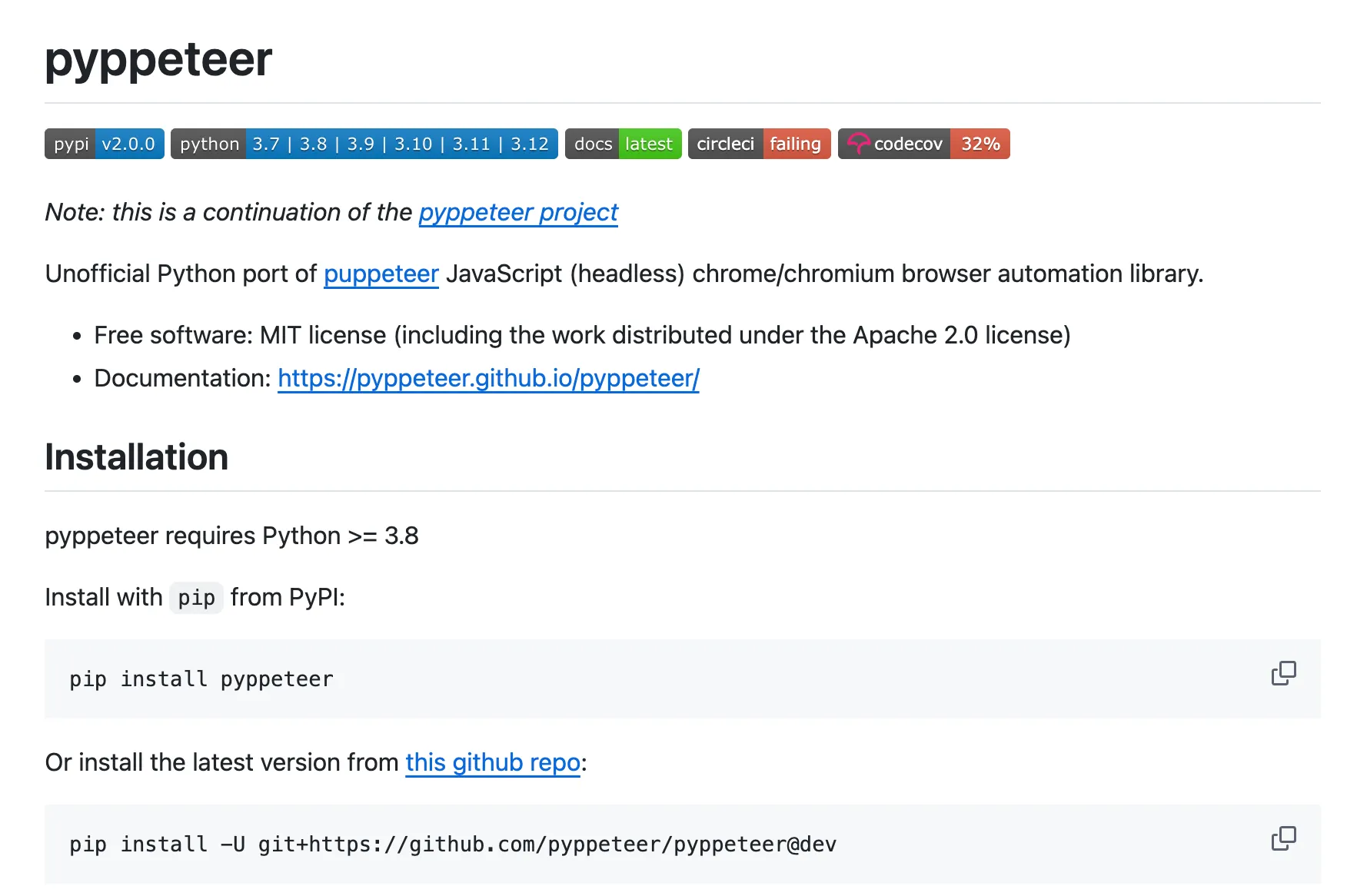
Installation and Basic Screenshot
Install it as:
pip install pyppeteerOn first run, pyppeteer downloads Chromium automatically.
import asynciofrom pyppeteer import launch
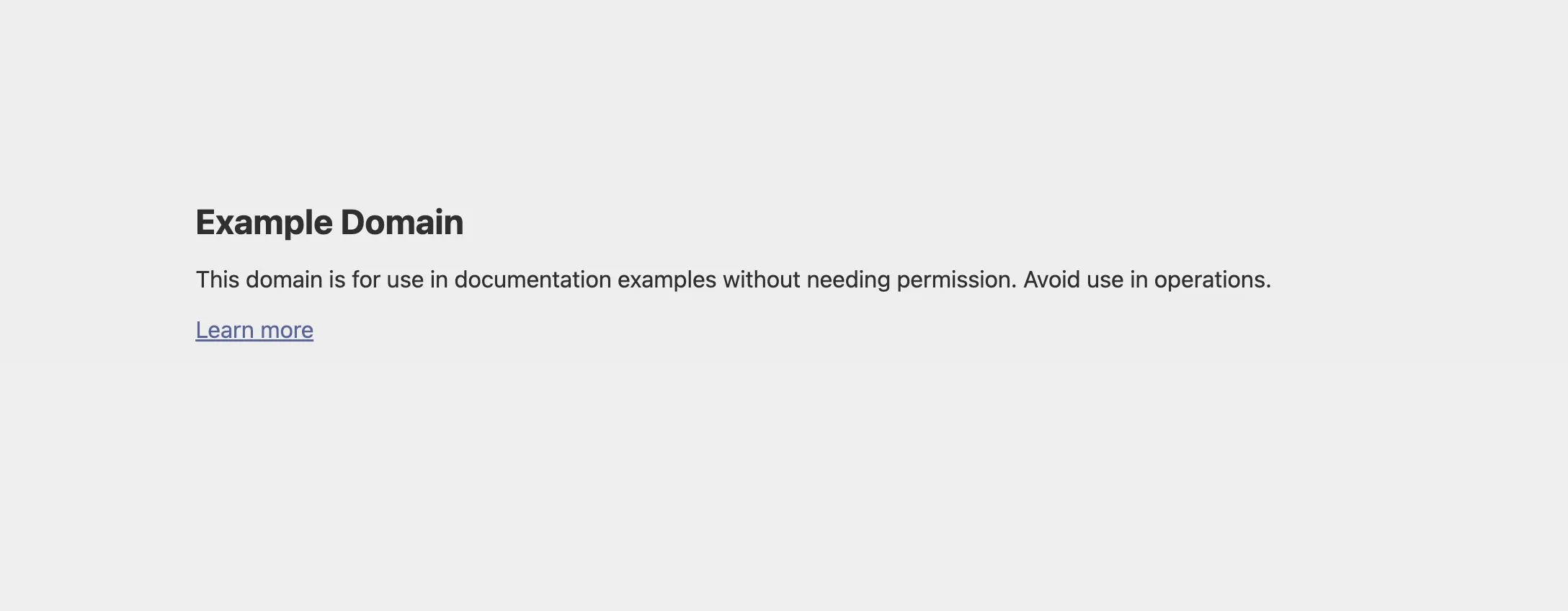
async def take_screenshot(): browser = await launch() page = await browser.newPage() await page.goto('https://example.com') await page.screenshot({'path': 'screenshot.png'}) await browser.close()
asyncio.get_event_loop().run_until_complete(take_screenshot())As you might expect, the result is a screenshot like that:
Full Page Screenshots
import asynciofrom pyppeteer import launch
async def full_page_screenshot(): browser = await launch() page = await browser.newPage() await page.goto('https://example.com') await page.screenshot({ 'path': 'fullpage.png', 'fullPage': True }) await browser.close()
asyncio.get_event_loop().run_until_complete(full_page_screenshot())Viewport Settings
async def screenshot_with_viewport(): browser = await launch() page = await browser.newPage()
# Set viewport await page.setViewport({ 'width': 1920, 'height': 1080 })
await page.goto('https://example.com') await page.screenshot({'path': 'screenshot.png'}) await browser.close()Element Screenshots
async def element_screenshot(): browser = await launch() page = await browser.newPage() await page.goto('https://example.com')
element = await page.querySelector('.hero-section') await element.screenshot({'path': 'element.png'})
await browser.close()Waiting for Content
async def screenshot_with_wait(): browser = await launch() page = await browser.newPage() await page.goto('https://example.com')
# Wait for selector await page.waitForSelector('.main-content')
# Or wait for navigation await page.waitForNavigation()
await page.screenshot({'path': 'screenshot.png'}) await browser.close()Headless Mode
async def headless_screenshot(): browser = await launch(headless=True) # Default is True page = await browser.newPage() await page.goto('https://example.com') await page.screenshot({'path': 'screenshot.png'}) await browser.close()PDF Generation
One advantage pyppeteer shares with Playwright:
async def generate_pdf(): browser = await launch() page = await browser.newPage() await page.goto('https://example.com') await page.pdf({ 'path': 'page.pdf', 'format': 'A4' }) await browser.close()Why Migrate to Playwright?
| Feature | pyppeteer | Playwright |
|---|---|---|
| Maintained | No (since a few years ago) | Yes (actively) |
| Browser support | Chromium only | Chrome, Firefox, Safari |
| Sync API | No | Yes |
| Auto-wait | Basic | Advanced |
| Documentation | Outdated | Excellent |
| Community | Small | Large |
Migration Guide
Most pyppeteer code translates to Playwright with minor changes:
pyppeteer
import asynciofrom pyppeteer import launch
async def main(): browser = await launch() page = await browser.newPage() await page.goto('https://example.com') await page.screenshot({'path': 'screenshot.png', 'fullPage': True}) await browser.close()
asyncio.get_event_loop().run_until_complete(main())Playwright
import asynciofrom playwright.async_api import async_playwright
async def main(): async with async_playwright() as p: browser = await p.chromium.launch() page = await browser.new_page() await page.goto('https://example.com') await page.screenshot(path='screenshot.png', full_page=True) await browser.close()
asyncio.run(main())Key differences:
launch()→p.chromium.launch()newPage()→new_page(){'path': ...}→path=...(keyword args)fullPage→full_pageasyncio.get_event_loop().run_until_complete()→asyncio.run()
Common Issues with pyppeteer
Chromium Version Mismatch
pyppeteer downloads an old Chromium version that may not work with modern websites:
# Workaround: specify executable pathbrowser = await launch(executablePath='/path/to/chrome')Connection Errors
# Increase timeoutbrowser = await launch(timeout=60000)Memory Leaks
Long-running pyppeteer processes often leak memory. Restart the browser periodically:
# Close and reopen browser every N screenshotsif screenshot_count % 100 == 0: await browser.close() browser = await launch()Summary
pyppeteer works for simple use cases but has significant limitations:
- Not actively maintained
- Uses outdated Chromium
- Limited browser support
- Basic async patterns
Recommendation: Migrate to Playwright for better features, active maintenance, and modern browser support. And check out our best guide on how to take website screenshots in Python.
Frequently Asked Questions
If you read the article, but still have questions. Please, check the most frequently asked. And if you still have questions, feel free reach out at support@screenshotone.com.
Is pyppeteer still maintained?
No, pyppeteer is no longer actively maintained. The latest update was a few years ago. For new projects, use Playwright instead, which is actively developed and has better features.
What is the difference between pyppeteer and Playwright?
Both are browser automation libraries, but Playwright is actively maintained, supports multiple browsers natively, has better async support, and includes more features. pyppeteer only supports Chromium and is outdated.
How to migrate from pyppeteer to Playwright?
The APIs are similar. Replace 'from pyppeteer import launch' with 'from playwright.async api import async playwright', and adjust method names slightly. Most code translates directly.