Vercel Labs’ agent-browser can drive a browser from the command line and save what it sees as an image. It also exposes screenshot capture through its MCP server. Here is a workflow for viewport, full-page, element, and annotated screenshots, using ScreenshotOne’s public homepage as the example.
I checked the commands and images below with agent-browser 0.38.1 on macOS using Google Chrome. The screenshots in this post were produced by agent-browser.
Install agent-browser and open a page
The official installation instructions recommend installing the CLI and then downloading Chrome for Testing:
npm install -g agent-browseragent-browser installagent-browser --versionOpen the page, choose a 1,280 × 800 CSS-pixel viewport, and wait for its heading before capturing:
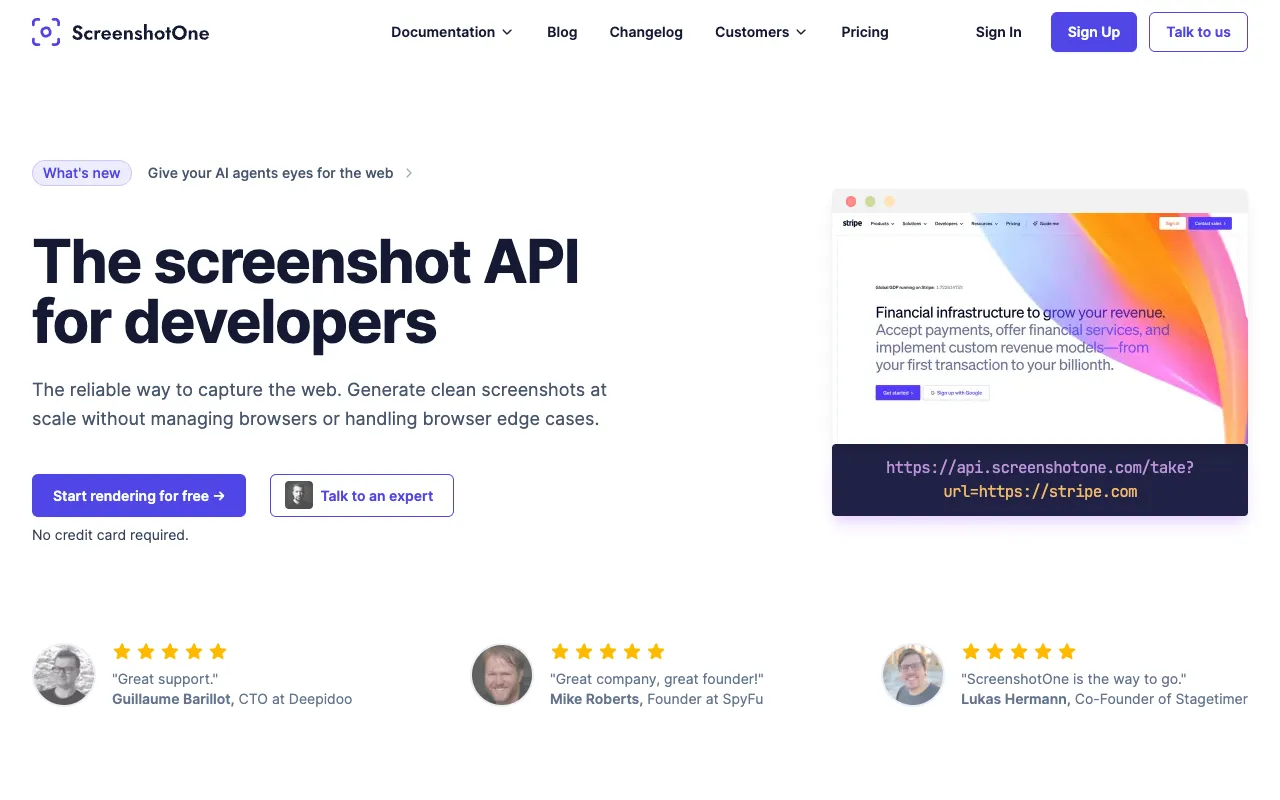
agent-browser open https://screenshotone.com/agent-browser set viewport 1280 800 1agent-browser wait h1agent-browser screenshot ./homepage-viewport.pngThe last command saves a PNG in the current working directory and prints its path. This is the resulting 1,280 × 800 screenshot:
Each command uses the same browser session, so you can interact with a page and then capture its resulting state. Wait for an element or text that signals the state you need. A page with continuous polling may never satisfy a networkidle wait.
Capture the full page
Add --full to include the scrollable page below the viewport. The following command also writes a JPEG at quality 82:
agent-browser screenshot --full --screenshot-format jpeg --screenshot-quality 82 ./homepage-full.jpgThe page in this example produced a 1,280 × 7,850 JPEG. Click the preview to inspect the original capture:

The viewport controls the page’s width; --full extends the image to its scroll height. For pages with lazy-loaded content, scroll through the sections that matter, wait for them to render, and capture again. Use PNG when you need crisp interface details. JPEG can make a long page easier to store or share; --screenshot-quality applies to JPEG output.
Screenshot a single element
Put the selector before the file path. This example captures only the homepage heading:
agent-browser wait h1agent-browser screenshot h1 ./homepage-heading.png
A fresh agent-browser snapshot can also give you an element ref such as @e1. Then you can use agent-browser screenshot @e1 ./heading.png. Re-run the snapshot after navigation because refs belong to the current page state. The screenshot command takes its selector as a positional argument. Use --selector when scoping an accessibility snapshot.
Choose the file location, format, and resolution
Give screenshot a path when the image needs a predictable name. If you omit it, agent-browser saves the image in a temporary directory and prints the generated path. You can choose a default directory for unnamed screenshots:
agent-browser screenshot --screenshot-dir ./shotsagent-browser screenshot --screenshot-format jpeg --screenshot-quality 80 ./page.jpgFor a higher-resolution image at the same CSS layout, change the viewport scale:
agent-browser set viewport 1280 800 2agent-browser screenshot ./homepage-2x.pngIn my test, the viewport screenshot changed from 1,280 × 800 to 2,560 × 1,600 image pixels. The third set viewport argument is the scale factor; increasing the CSS width instead can change the page’s responsive layout. agent-browser’s command reference documents the viewport, format, quality, and output-directory options.
Screenshots and accessibility snapshots
agent-browser snapshot -i returns an accessibility tree with element refs. It is useful for finding controls and reading their accessible names. A screenshot records the rendered pixels, including layout, colors, and imagery.
For a visual map of interactive elements, request an annotated screenshot:
agent-browser snapshot -iagent-browser screenshot --annotate ./homepage-annotated.png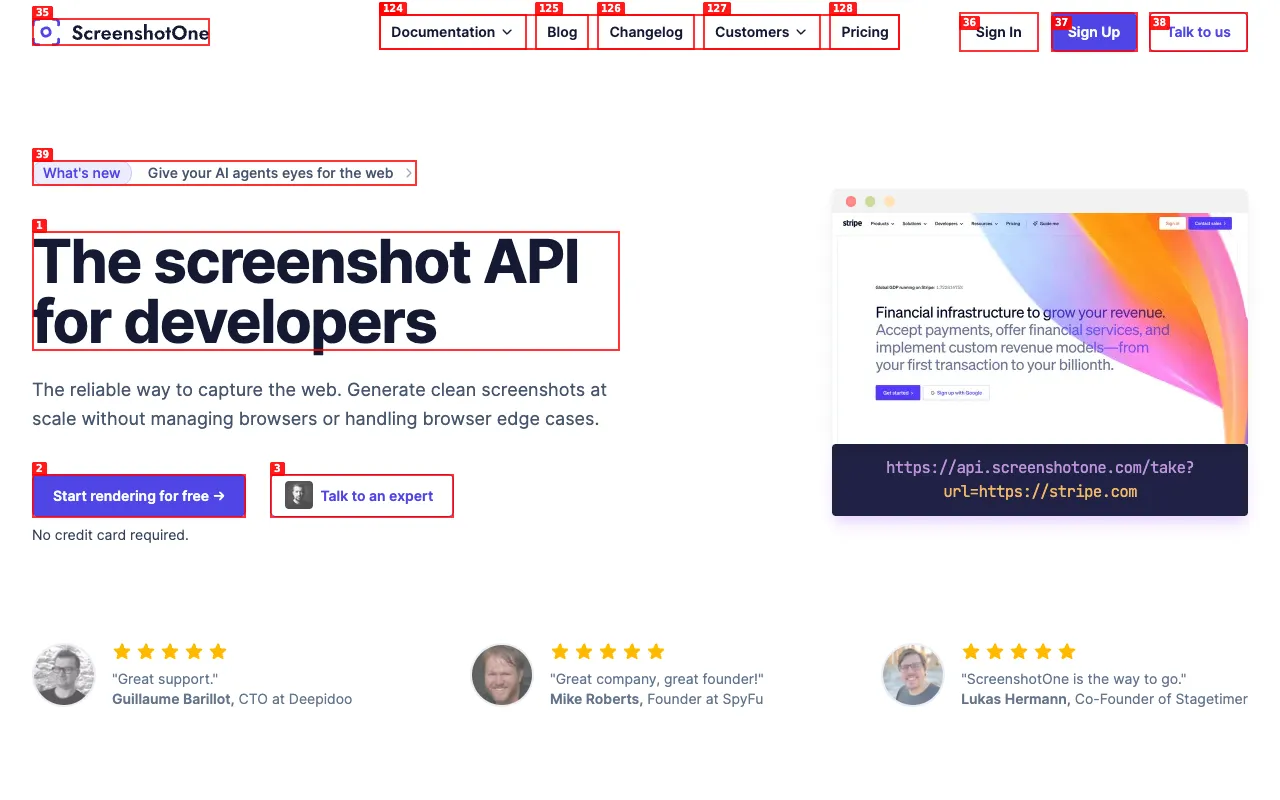
The numbers on the image correspond to refs such as @e1 in agent-browser’s output. This can help an agent connect a visual target to an element it can click. The snapshot documentation explains how refs are assigned and when to refresh them.
Can I take agent-browser screenshots through MCP?
Yes. agent-browser mcp starts its stdio MCP server. For clients that accept an mcpServers configuration, the official example is:
{ "mcpServers": { "agent-browser": { "command": "agent-browser", "args": ["mcp"] } }}Then call these tools from the MCP client. Replace the example paths with absolute, writable paths on the machine running the server:
| MCP tool | Arguments |
|---|---|
agent_browser_open | {"url":"https://screenshotone.com/"} |
agent_browser_screenshot | {"path":"/tmp/homepage-full.jpg","fullPage":true,"format":"jpeg","quality":82} |
agent_browser_screenshot | {"path":"/tmp/homepage-heading.png","selector":"h1"} |
I tested both screenshot calls against agent-browser 0.38.1’s MCP server; each returned its saved file path. The typed screenshot inputs also include annotate and screenshotDir. An MCP client may show a small PNG or JPEG capture as image content along with the path.
Troubleshooting
- The page or element is missing: use
agent-browser wait <selector>for a meaningful loaded state, check the selector withagent-browser get count <selector>, and take a fresh snapshot after navigation. - The screenshot is hard to find: pass a path such as
./shots/page.png, or read the generated path printed after a capture without one. - The image is too small: keep the desired CSS viewport and increase its scale to
2for a denser image. - The full page is incomplete: check whether lower sections load only after scrolling, wait for those sections, and capture again.
- A flag is being treated as a selector: use
--fullfor a full-page screenshot. For an element, put the selector before the path:agent-browser screenshot h1 ./heading.png.
agent-browser is useful when a screenshot follows browser actions in the same session. For a workflow that starts with public URLs and needs captures without running Chrome locally, ScreenshotOne’s screenshot API and hosted MCP server can render those URLs separately. A hosted render uses its own browser session, so an authenticated page needs its own setup.
Frequently Asked Questions
If you read the article, but still have questions. Please, check the most frequently asked. And if you still have questions, feel free reach out at support@screenshotone.com.
How do I save an agent-browser screenshot to a file?
Pass an output path, for example agent-browser screenshot ./page.png. Without a path, agent-browser saves to a temporary directory and prints the resulting path.
How do I capture one element with agent-browser?
Pass a CSS selector or a current snapshot ref before the output path, for example agent-browser screenshot h1 ./heading.png.
Does agent-browser support full-page screenshots?
Yes. Use agent-browser screenshot --full ./page-full.png. Set the viewport before capturing to control the page width.