Playwright MCP can take screenshots of a page your agent has opened in its browser. Use browser_take_screenshot for a viewport, a whole scrollable page, or one element. Give the capture a filename when you need to keep the file.
This guide uses the official Playwright MCP server. The images below were captured with @playwright/mcp 0.0.82 on September 28, 2026, using headless Chrome at a 1280 × 720 viewport. The page was ScreenshotOne’s MCP page; its content and the exact image height may change.
Set up Playwright MCP
You need Node.js 18 or newer, an MCP client, and a browser that Playwright MCP can launch. Add the server to your client’s MCP configuration:
{ "mcpServers": { "playwright": { "command": "npx", "args": ["@playwright/mcp@latest", "--headless", "--viewport-size=1280x720"] } }}The location of this configuration depends on your client. Restart the client after adding it, then check that it exposes browser_navigate, browser_snapshot, and browser_take_screenshot. The Playwright MCP setup guide also has client-specific instructions. For the captures in this article, I added --browser=chrome to use the Chrome installation on my machine.
The JSON blocks in the next sections are tool arguments, not terminal commands. You can provide the same instructions in plain language to an MCP-enabled agent, but check which tool it calls and what path it returns.
Capture the visible viewport
First, open the page:
browser_navigate{"url":"https://screenshotone.com/mcp/"}Then save the visible part of the page:
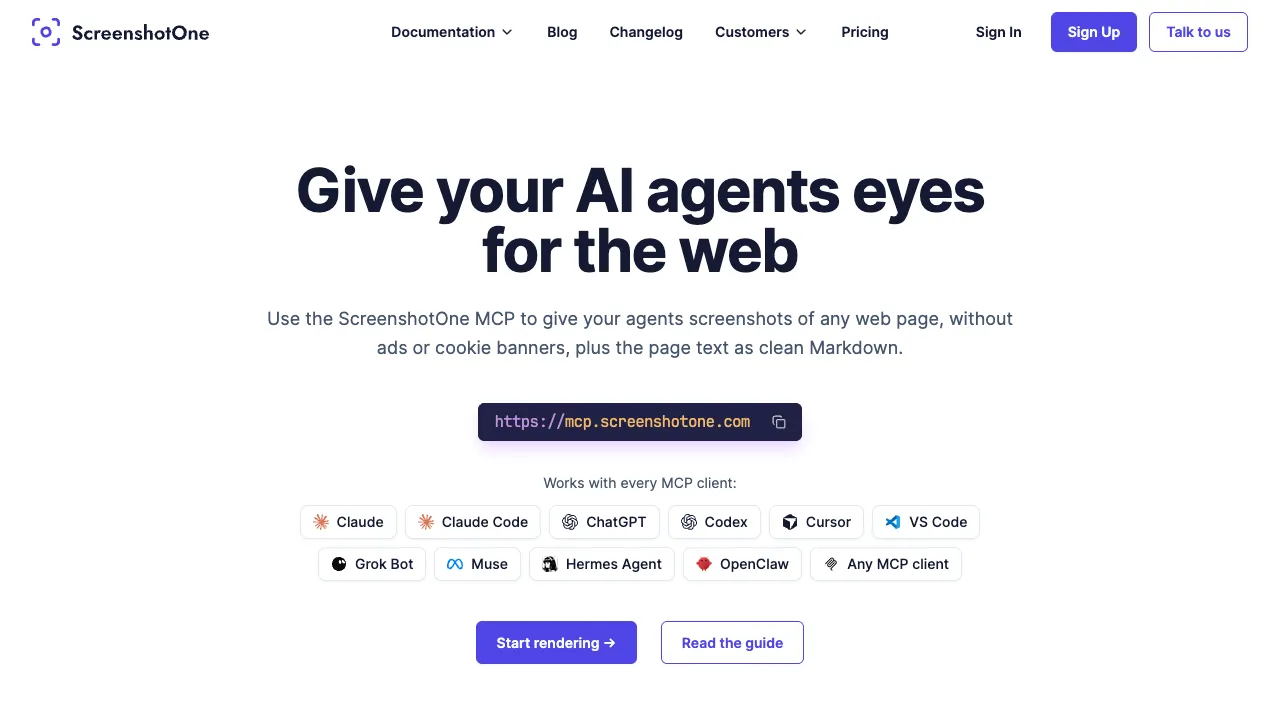
browser_take_screenshot{"filename":"mcp-viewport.png"}Without fullPage or an element target, browser_take_screenshot captures the current viewport. In this run, it saved ./mcp-viewport.png and reported the path in the tool result. The image is 1280 × 720 pixels, matching the configured viewport at the default CSS-pixel scale:
If you are using an agent, a prompt such as “Open https://screenshotone.com/mcp/ and save a viewport screenshot as mcp-viewport.png” should lead to the same two tool calls. Inspect the result to confirm the file was actually written.
Capture the full page
Add fullPage: true to include the scrollable page, not just the visible window:
browser_take_screenshot{"filename":"mcp-full-page.png","fullPage":true}The same page produced a 1280 × 5953 pixel PNG in this run. The width stayed at the viewport width; the height grew to cover the document.
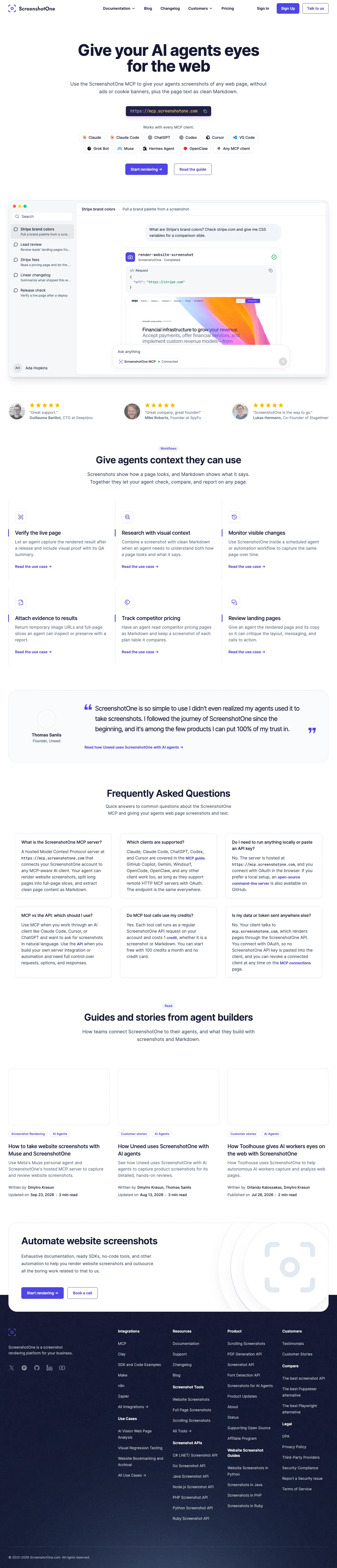
Full-page images can become very tall. If you only need to inspect one section, an element screenshot is easier to read. Also check late-loading content before treating a full-page capture as complete; pages may reveal images or widgets only after scrolling.
Capture one element
Use browser_snapshot to inspect the page’s accessible structure and find the element you need:
browser_snapshot{}The snapshot for this page included a line like this:
- heading "Give your AI agents eyes for the web" [level=1] [ref=e39]The e39 reference belongs to that browser state and may differ in your session. browser_take_screenshot accepts a fresh snapshot reference or a unique selector as target. This capture used the page’s h1 selector:
browser_take_screenshot{"element":"The page's main heading","target":"h1","filename":"mcp-element.png"}It saved a 768 × 120 pixel image of the heading alone:

Use element to describe the target for the client and target to identify it. If a selector matches several elements, use the exact reference from a new snapshot or a more specific unique selector. fullPage cannot be combined with an element screenshot.
Where does Playwright MCP save screenshots?
With an explicit filename, a relative path is resolved against the MCP client’s workspace root. In the examples above, the tool returned paths such as ./mcp-viewport.png and wrote those files in the test workspace. Look at the path in the tool result rather than assuming it is your terminal’s current directory.
If you omit filename, Playwright MCP uses an automatically generated name such as page-2026-09-27T21-50-44-170Z.png. The --output-dir server option controls these automatically named files. It does not redirect captures that specify filename:
{ "mcpServers": { "playwright": { "command": "npx", "args": [ "@playwright/mcp@latest", "--headless", "--output-dir=/absolute/path/to/mcp-captures" ] } }}After that configuration, a call to browser_take_screenshot with {} saves an automatically named image in that directory. If you need the tool result to show an absolute path, Playwright MCP also supports --file-paths=absolute. The saved file lives on the machine running the MCP server; a remote server’s filesystem may differ from your local workspace.
Set the viewport and image resolution
The viewport determines how much of the page fits in a viewport screenshot and often changes the page’s responsive layout. You can set it at startup with --viewport-size=1280x720 or during the session:
browser_resize{"width":1280,"height":720}The screenshot’s scale controls output pixel density:
browser_take_screenshot{"filename":"mcp-device.png","scale":"device"}"css" is the default and produces an image sized in CSS pixels. "device" uses device pixels, so it can produce a larger image when the browser’s device pixel ratio is above 1. On a browser with a ratio of 1, both settings have the same pixel dimensions. Enlarging a screenshot after capture does not add detail; choose the viewport and scale before capturing. Playwright MCP also supports PNG, JPEG, and WebP through the type argument or the filename extension.
Screenshot or accessibility snapshot?
These two tools answer different questions:
| Tool | What it returns | Use it for |
|---|---|---|
browser_snapshot | A structured view of roles, names, text, and element references | Finding controls and choosing a reliable target for browser actions |
browser_take_screenshot | Pixels showing the rendered page | Checking layout, color, imagery, visual regressions, or sharing visual evidence |
The snapshot told us which heading to target; the element screenshot showed how it looked. A screenshot is not a substitute for a fresh snapshot when an agent needs to click or identify an element. Likewise, the accessibility tree cannot tell you whether a banner overlaps a button or an image is clipped. Playwright MCP’s tool reference documents both operations.
Troubleshooting
- The screenshot tool is missing. Check the MCP server configuration and restart the client. Confirm that
browser_navigateandbrowser_snapshotare available too. - The browser will not launch. Read the launch error for the missing browser. If Chrome is installed, add
--browser=chrometo the server arguments; otherwise follow Playwright’s browser installation guidance. - You cannot find the file. Check the path in the tool result. An explicit
filenameis relative to the workspace root;--output-dirapplies to unnamed captures. A remote MCP server writes to its own filesystem. - The wrong element was captured. Run
browser_snapshotagain after navigation or page changes, then use its current reference or a unique selector. Old references can become stale. - The capture is blank or incomplete. Wait for the content you need with
browser_wait_for, for example{"text":"Give your AI agents eyes for the web"}. If content loads only after scrolling, reveal that section before taking the screenshot again. - The image is too large. Capture the viewport or a specific element instead of the full page, reduce the viewport if appropriate, or save as JPEG or WebP.
Playwright MCP is useful when the agent needs to interact with the page in its browser and then capture that state. If you start with a URL and need a hosted screenshot workflow, see ScreenshotOne’s MCP server and its MCP documentation. ScreenshotOne renders in its own browser, so it does not automatically share a login or page state from a Playwright MCP session.