To convert an HTML string to an image in Python, load it with Playwright’s page.set_content() and save the result with page.screenshot(). CSS controls the design; the browser turns it into pixels.
I use this approach for templates: a social card for each article, an order summary, or a badge with a transparent background. If you have a website URL instead, start with the Python website screenshot guide.
Render an HTML string
Create an environment and install Playwright and its Chromium browser:
python -m venv .venvsource .venv/bin/activate# On Windows: .venv\Scripts\activatepython -m pip install playwrightpython -m playwright install chromiumSave this as html_to_image.py. It produces an 800 × 300 PNG with clear space around a green badge:
from playwright.sync_api import sync_playwright
html = """<!doctype html><html lang="en"><head><meta charset="utf-8"><title>HTML badge</title><style> * { box-sizing: border-box; } body { margin: 0; width: 800px; height: 300px; display: grid; place-items: center; font-family: Arial, sans-serif; } .badge { padding: 32px 48px; border: 2px solid #234d30; border-radius: 100px; background: #e4f5cc; color: #173921; } p { margin: 0 0 10px; font-size: 11px; letter-spacing: 2px; } h1 { margin: 0; font-size: 36px; }</style></head><body><main class="badge"><p>MADE WITH HTML + CSS</p><h1>Built with care.</h1></main></body></html>"""
with sync_playwright() as p: browser = p.chromium.launch() page = browser.new_page( viewport={"width": 800, "height": 300}, device_scale_factor=1, ) page.set_content(html, wait_until="load") page.wait_for_function("document.fonts.status === 'loaded'") page.screenshot( path="badge.png", omit_background=True, animations="disabled", ) browser.close()Run it:
python html_to_image.py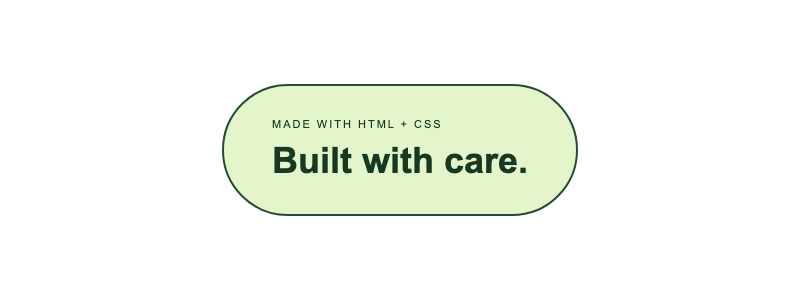
The viewport fixes the canvas at 800 × 300 CSS pixels. With device_scale_factor=1, that is also the PNG’s pixel size. Set it to 2 for a 1600 × 600 image with the same layout. If your content extends beyond the canvas, resize the viewport or use full_page=True; that changes the output height.
Playwright saves PNG and JPEG screenshots. For WebP, convert the saved image with an image library or request WebP from ScreenshotOne.
Render a local HTML file
Download the complete social-card HTML template and save it as card.html. It includes its CSS and uses a system font, so there are no external assets to configure.
This script renders the file at 1200 × 630:
from pathlib import Pathfrom playwright.sync_api import sync_playwright
with sync_playwright() as p: browser = p.chromium.launch() page = browser.new_page( viewport={"width": 1200, "height": 630}, device_scale_factor=1, ) page.goto(Path("card.html").resolve().as_uri(), wait_until="load") page.wait_for_function("""() => document.fonts.status === 'loaded' && Array.from(document.images).every(image => image.complete) """, timeout=15_000) broken_images = page.locator("img").evaluate_all( "images => images.filter(image => image.naturalWidth === 0).length" ) if broken_images: raise RuntimeError(f"{broken_images} image(s) failed to load") page.screenshot(path="social-card.png", animations="disabled") browser.close()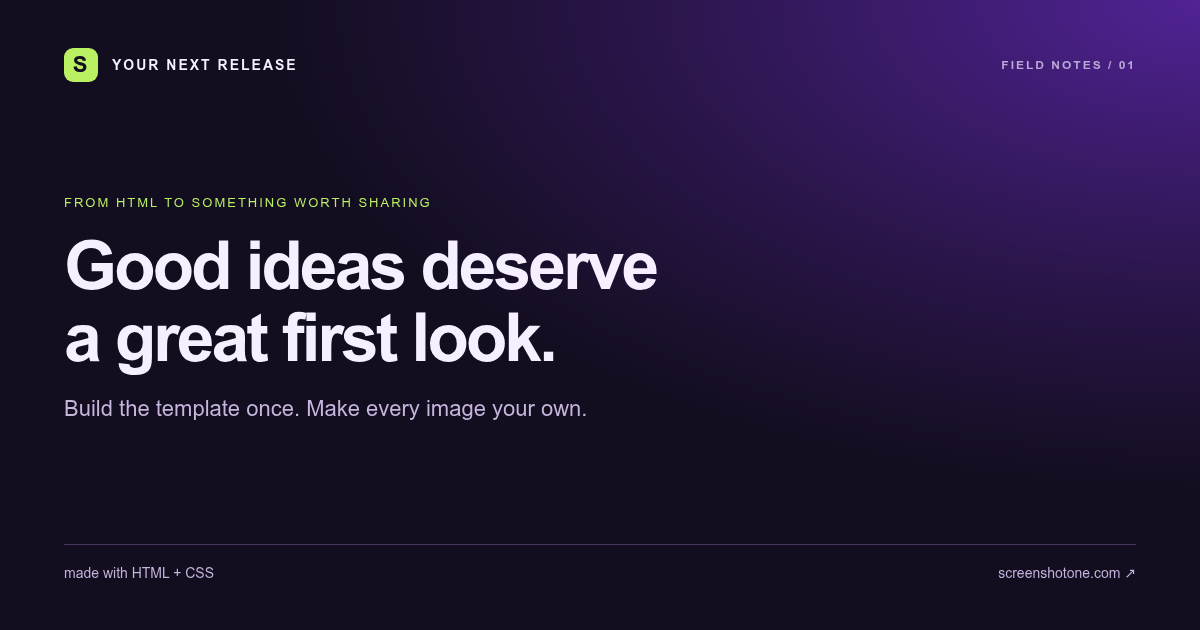
Using page.goto() with the file URL gives images/logo.png a base directory. Reading the file into a string and passing it to set_content() does not preserve that directory.
For a template that requires HTTP, serve its folder with python -m http.server 8000 --bind 127.0.0.1 and navigate to http://127.0.0.1:8000/card.html. Run that command from a folder containing only the files you intend to serve.
Get fonts, images, and transparency right
Most disappointing renders come from an asset that did not load or a capture that happened too early.
- Use explicit fonts. A system font may look different across operating systems. For consistent output, supply a font you are licensed to use with
@font-face.document.fonts.statuswaits for font loading to finish; it does not prove that your preferred font loaded instead of a fallback. You can check that separately withdocument.fonts.check('16px "Your Font"'). - Give assets a real location. For an HTML string, use absolute URLs, embedded data URLs, or a
<base href="https://your-site.example/">in the head. For local files, use the file URL or a local HTTP server. - Wait for the content you need. The example checks
<img>elements, including broken images. CSS backgrounds are not indocument.images. For content added asynchronously, wait for an application-specific selector or ready state. A fixed sleep can hide a missing asset without fixing it. - Keep transparent areas transparent.
omit_background=Trueremoves the browser’s default background. It leavesbody { background: white; }and other explicit backgrounds intact. Use PNG, since JPEG has no alpha channel.
To capture just one element, replace the screenshot call with page.locator(".badge").screenshot(path="badge-only.png", omit_background=True). The image will follow that element’s bounds rather than the full viewport.
Use the ScreenshotOne API from Python
Playwright is a good fit when you want to own the browser process. For a service that generates images repeatedly, the HTML to Image API lets you send the template and save the response without installing Chromium on your server.
Set SCREENSHOTONE_ACCESS_KEY in your environment. Using the same card.html, save this as html_to_image_api.py:
import jsonimport osfrom pathlib import Pathfrom urllib.request import Request, urlopen
options = { "html": Path("card.html").read_text(encoding="utf-8"), "format": "png", "viewport_width": 1200, "viewport_height": 630, "device_scale_factor": 1, "wait_until": ["load"],}request = Request( "https://api.screenshotone.com/take", data=json.dumps(options).encode("utf-8"), headers={ "Content-Type": "application/json", "X-Access-Key": os.environ["SCREENSHOTONE_ACCESS_KEY"], }, method="POST",)# HTTP errors raise before a file is written.with urlopen(request, timeout=120) as response: image = response.read()if not image.startswith(b"\x89PNG\r\n\x1a\n"): raise ValueError("The API did not return a PNG image")Path("social-card-api.png").write_bytes(image)The request sends the file’s contents, not its local path. ScreenshotOne cannot read your disk: use public asset URLs or embed the assets. If you keep CSS separately, pass it in the styles option. For transparent PNG output, add "omit_background": True and keep the template’s background clear. The API currently rejects this option for WebP, including when it is set to False; omit it from WebP and JPEG requests.
The default response is the image’s bytes. Save them locally or upload them to your own storage. Use the API’s storage options when you need a hosted image URL. A temporary response URL is not a permanent asset.
I ran the HTML-string, local-file, and API scripts on October 5, 2026 with Python 3.12.14 and Playwright 1.63.0 (Chromium 153.0.8010.12) on macOS 15.7.4. I inspected the saved PNGs, including the badge’s transparent corners. The social-card image above is the API output; the local browser uses its own installed fonts.
Work on the design before automating it
The HTML to image converter has editable social-card, receipt, and badge templates. It accepts inline HTML/CSS and embedded assets, and returns PNG, JPG, or WebP downloads. Once the template looks right, copy its JSON request into your application.
For social cards, generate an opaque image, publish it at a public URL, and reference it in og:image. The Open Graph serving guide covers that last step, and the link-preview checker helps inspect the finished page.
References: Playwright screenshots, setting page content, and ScreenshotOne HTML options.
Frequently Asked Questions
If you read the article, but still have questions. Please, check the most frequently asked. And if you still have questions, feel free reach out at support@screenshotone.com.
How do I convert an HTML string to an image in Python?
Use Playwright to open Chromium, call page.set_content(html), wait for the fonts and images your template needs, then call page.screenshot(path='image.png'). Set the viewport dimensions before rendering.
How do I take a screenshot of a local HTML file?
Convert the file path to a file URL with Path('card.html').resolve().as_uri(), then pass it to page.goto(). This gives relative asset paths a base URL. If your template requires HTTP or modules, serve the folder locally instead.
Can Python generate a transparent PNG from HTML?
Yes. Keep the HTML and CSS background transparent and pass omit_background=True to Playwright's screenshot method. For ScreenshotOne, use format='png' with omit_background=True. JPEG does not support transparency.
Can I render HTML without installing a browser?
Use the ScreenshotOne API from Python. Send the HTML in a JSON POST request, authenticate with X-Access-Key, and save the returned image bytes. The browser runs in the rendering service.